

Last updated: October 25, 2026
Quick Answer
This Google Search Console SEO Guide shows you how to diagnose indexing, traffic and ranking problems using four core reports: Page Indexing, Search Performance, URL Inspection and Core Web Vitals. Start with URL Inspection for a single page, use Page Indexing for site-wide indexing issues, and use Search Performance to find traffic and ranking drops. Most problems trace back to crawling, canonicalization, or a Google update, rarely a manual penalty.
Key Takeaways
- Google Search Console is free and gives you direct data from Google about how your site is crawled, indexed and shown in search results.
- “Indexed” and “appearing in search results” are not the same thing, a page can be indexed and still rank poorly or not show for specific queries.
- The Page Indexing report (formerly Index Coverage) is your starting point for any “my page isn’t showing up” question.
- Traffic drops are usually one of four things: an algorithm update, a seasonal pattern, a technical fault, or manual action.
- Google can take anywhere from a few days to several weeks to index new pages, depending on site authority and crawl budget.[1]
- Core Web Vitals affect user experience scores but are only one of many ranking factors, don’t over-invest time here if content quality is weak.
- Search Console works best alongside Google Analytics, not instead of it.
- The Indexing API request form was phased out in October 2026, and quota information moved to a new dedicated page.[2]
What Is Google Search Console and Why Do I Need It for SEO
Google Search Console is a free tool from Google that shows how your website performs in Google Search, which pages are indexed, which queries bring traffic, and which technical issues might be hurting visibility. You need it because it’s the only tool that shows data directly from Google’s own index, not an estimate from a third-party crawler.
If you’re serious about learning digital marketing or managing a client’s SEO, Search Console is non-negotiable. It answers the three questions every site owner eventually asks:
- Is Google finding my pages?
- Is Google showing my pages for the right searches?
- Is something technical blocking my traffic?
Without this data, you’re guessing. With it, you’re making informed decisions based on actual search behavior, which is exactly the kind of practical digital marketing tips that separate beginners from people who actually improve your website over time.
How Do I Set Up and Verify My Website in Google Search Console
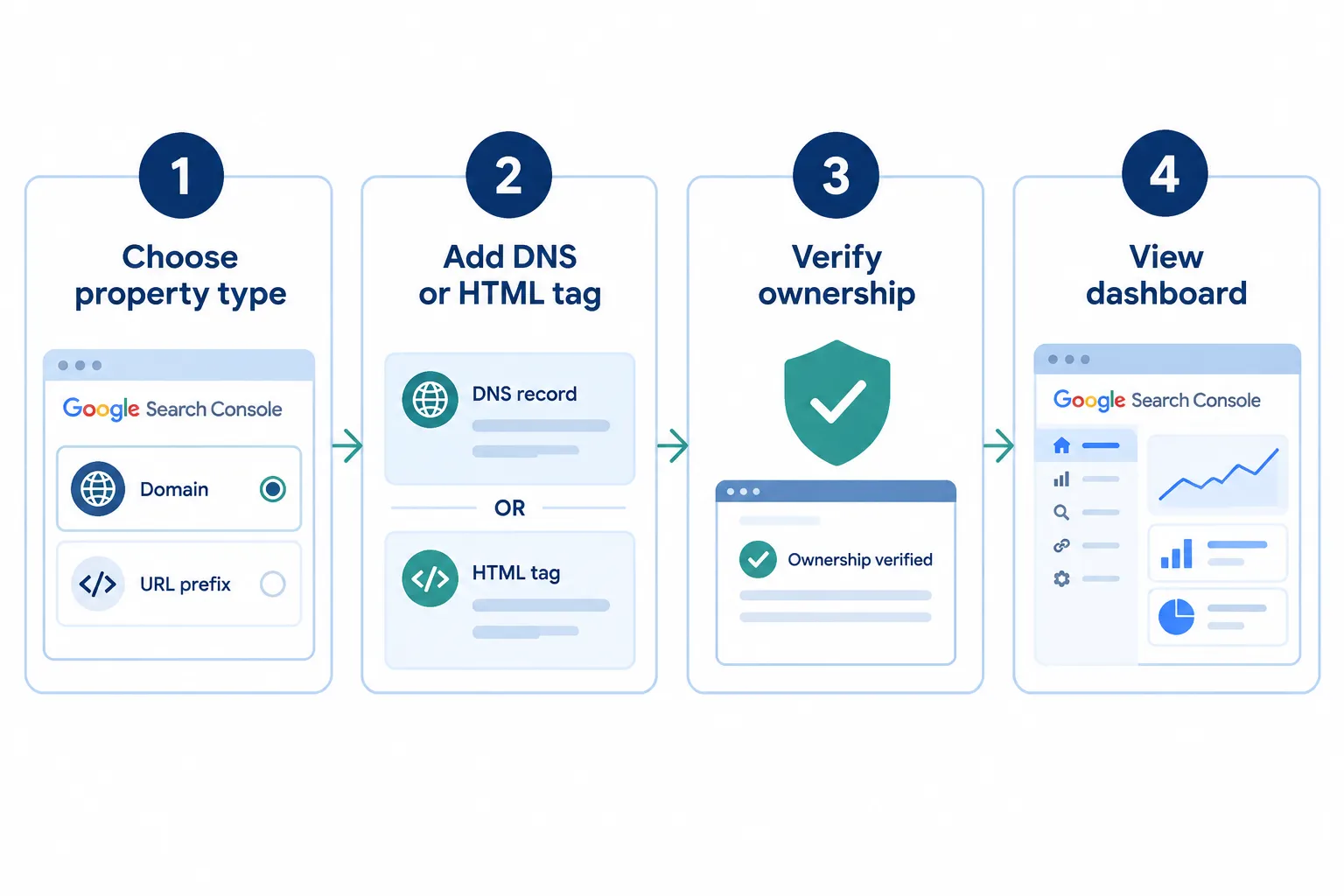
You set up Search Console by adding your site as a “property” and proving ownership through DNS, an HTML tag, Google Analytics, or Google Tag Manager. The domain property (covering all subdomains and protocols) is usually the better choice over a URL-prefix property.
Step-by-step:
- Go to Search Console and click “Add Property.”
- Choose Domain property if you manage DNS, or URL prefix if you only control a subfolder.
- Verify ownership using your preferred method, DNS TXT record is most reliable long-term.
- Wait a few hours for Google to confirm verification.
- Submit your XML sitemap under the Sitemaps section.
Common mistake: People verify only the “www” version and forget the “non-www” or HTTPS variant, which splits their data across multiple unverified properties. Domain properties fix this automatically.
What’s the Difference Between Search Console and Google Analytics
Search Console shows how Google finds and ranks your site before a visitor clicks; Google Analytics shows what happens after they land on your site. One tells you about search visibility, the other tells you about on-site behavior.
| Feature | Search Console | Google Analytics |
|---|---|---|
| Shows search queries | Yes | Limited (via integration) |
| Shows click-through rate | Yes | No |
| Shows bounce/session data | No | Yes |
| Shows indexing status | Yes | No |
| Shows conversions | No | Yes |
Decision rule: Use Search Console to find out why you’re getting (or not getting) traffic from Google. Use Analytics to find out what visitors do once they arrive. Both together give you the full picture, this combination is one of the most actionable insights available to anyone doing SEO work.
How Do I Find Indexing Issues in Google Search Console
Open the Page Indexing report (under the Indexing menu) to see exactly which URLs are indexed, which are excluded, and why. This is the fastest way to catch indexing issues before they become traffic issues.
Look for these status labels:
- Indexed, the page is in Google’s index and eligible to rank.
- Discovered, currently not indexed, Google knows the URL exists but hasn’t crawled it yet, often due to crawl budget limits.
- Crawled, currently not indexed, Google visited the page but chose not to index it, usually a quality or duplication signal.
- Excluded by ‘noindex’ tag, intentional or accidental noindex directive.
Search Central’s live sessions in October 2026 clarified that “Discovered” simply means a URL is in Google’s queue, while “Crawled, not indexed” means Google actively evaluated the page and decided against indexing it, which often points to thin or duplicate content.
Edge case: A brand-new site with few backlinks may show many “Discovered, not indexed” pages for weeks. That’s normal crawl prioritization, not a penalty.
What Are Crawl Errors and How Do I Fix Them
Crawl errors happen when Googlebot tries to access a page and fails, due to server errors, blocked resources, or broken redirects. You fix them by identifying the error type in the Page Indexing report and resolving the underlying cause, not just resubmitting the URL.
Common crawl errors and fixes:
| Error Type | Likely Cause | Fix |
|---|---|---|
| Server error (5xx) | Hosting overload or downtime | Check server logs, upgrade hosting |
| Redirect error | Redirect loop or chain | Simplify to a single 301 redirect |
| Blocked by robots.txt | Accidental disallow rule | Edit robots.txt, allow the path |
| 404 Not found | Deleted page still linked | Redirect to relevant live page |
The Crawling and Indexing FAQ updated in October 2026 recommends checking server response times and robots.txt rules first, since these account for most recurring crawl errors.[1]
Why Is My Site Not Showing Up in Google Search Results
A site that doesn’t appear in search results usually has one of three problems: it’s not indexed yet, it’s indexed but not ranking for relevant queries, or it’s blocked by a technical directive like noindex or robots.txt. Google’s updated guidance on “missing from Google” issues (October 2026) points webmasters to check indexing status before assuming a ranking problem.[2]
Checklist to diagnose “not showing up”:
- Run the page through URL Inspection, check the “Coverage” verdict.
- Confirm there’s no
noindexmeta tag or X-Robots-Tag header. - Check robots.txt isn’t disallowing the path.
- Confirm the page has at least one internal link pointing to it.
- Search
site:yourdomain.com/page-urldirectly in Google to confirm.
If the page is indexed but still invisible for target keywords, the issue shifts from indexing to ranking, move to the Search Performance report.
How Do I Check My Keyword Rankings and Traffic in Search Console
Use the Search Performance report to see which queries bring clicks and impressions, what your average position is, and how click-through rate compares across pages. This report is the backbone of ongoing SEO monitoring.[3]
Practical workflow:
- Filter by Page to see which queries a specific URL ranks for.
- Filter by Query to see which pages compete for the same keyword (cannibalization check).
- Sort by Impressions with low CTR to find titles/meta descriptions that need rewriting.
- Compare two date ranges side by side to spot real trends versus noise.
New multimodal reporting added in September 2026 also lets you filter performance data by search type, including image-based and AI-driven queries, which is useful if your site relies heavily on visual content or appears in AI Overviews.[4][5]
What Causes a Traffic Drop and How Do I Diagnose It
A traffic drop is almost always caused by one of four things: a Google algorithm update, a seasonal pattern, a technical fault like accidental noindex or broken redirects, or (rarely) a manual action. Google’s own “How to use Search Console” workflow recommends checking each of these in order before assuming the worst.[3]
Diagnostic steps:
- Check the Manual Actions report first, rule out penalties.
- Compare the drop date against known Google algorithm update timelines.[6]
- Check Page Indexing for a sudden rise in “excluded” pages.
- Compare year-over-year data to rule out seasonality.
- Use URL Inspection on your top pages to confirm they’re still indexed with the correct canonical.
Quick example: A blog loses 40% of organic traffic overnight. Manual Actions shows nothing. Page Indexing shows no change. But the Search Performance date range lines up exactly with a confirmed core update, that’s your answer, and the fix is content quality, not technical repair.
How Long Does It Take Google to Index My Pages
Indexing speed ranges from a few hours to several weeks, depending on your site’s crawl frequency, authority, and how often Google visits your server. New sites with few backlinks typically wait longer than established domains.[1]
Factors that speed up indexing:
- Submitting an updated XML sitemap
- Strong internal linking from already-indexed pages
- Consistent publishing schedule (signals active crawl demand)
- Clean server response times
The Indexing API still exists for specific content types (primarily job postings and livestreams), but Google removed the general request form and rewrote its quota documentation in October 2026, so most publishers should rely on sitemaps and internal linking instead of expecting instant indexing.[2]
What Are Common Mistakes People Make With Search Console
The most common mistake is checking Search Console only when something breaks, instead of monitoring it weekly. Reactive use means you catch problems late, after traffic has already dropped.
Other frequent mistakes:
- Ignoring the Page Indexing report until rankings fall
- Treating every “Discovered, not indexed” page as an emergency
- Requesting re-indexing repeatedly instead of fixing the root cause
- Confusing low position with low indexing, they’re different problems
- Not connecting Search Console to Analytics for a combined view
If you’re learning SEO from scratch, this guide pairs well with our blogging and page rank guide for understanding how content quality ties back into indexing decisions.
Can Search Console Actually Help Me Improve My Rankings
Search Console doesn’t directly change your rankings, but it shows you exactly where to focus effort, which queries are close to page one, which pages have high impressions but low clicks, and which technical issues are silently capping your visibility. Used consistently, it turns guesswork into a step-by-step guide for prioritizing SEO work.
Practical ranking-improvement actions from Search Console data:
- Find queries ranking position 8-15 and strengthen those pages first, they’re closest to a breakthrough.
- Rewrite titles for pages with high impressions but under 2% CTR.
- Fix internal linking to pages stuck in “Discovered, not indexed.”
- Monitor the AI-driven performance filters to understand visibility in newer search surfaces, covered in more detail in our guide to Search Console’s AI performance report.
For broader context on how AI-influenced search changes ranking strategy, see our Google AI Mode SEO guide and the comparison of GEO, AI search optimization and AEO.
What Does Core Web Vitals Mean and Should I Worry About It
Core Web Vitals measure page loading speed (LCP), interactivity (INP), and visual stability (CLS), three metrics Google uses to judge user experience. You should pay attention to them, but not panic over them unless your scores are clearly in the “poor” range.
| Metric | Measures | Good Threshold |
|---|---|---|
| LCP | Loading speed of main content | Under 2.5 seconds |
| INP | Responsiveness to interaction | Under 200 milliseconds |
| CLS | Visual layout stability | Under 0.1 |
Decision rule: Fix Core Web Vitals if your report shows red (poor) scores on mobile for high-traffic pages. If scores are yellow (needs improvement) but content quality and indexing are solid, prioritize content and internal linking first, the ranking impact of Core Web Vitals alone is modest.
What’s the Difference Between Indexed and Appearing in Search Results
A page being “indexed” means Google has stored it in its database. “Appearing in search results” means that page actually shows up for a specific query a user types. A page can be fully indexed and still never appear for competitive terms if it doesn’t satisfy search intent as well as competing pages.
This distinction trips up a lot of beginners. Indexing is a technical gate, you either pass it or you don’t. Ranking is a competitive contest that happens after you pass that gate. If you want SEO made simple, remember: fix indexing first, then fight for rankings.
What Tools Can I Use Instead of or Alongside Search Console for SEO
Search Console covers Google’s own data, but pairing it with a few other tools gives a fuller picture of technical health and competitive positioning. No single tool replaces the direct, first-party data Search Console provides.
- Google Analytics, on-site behavior and conversions
- Bing Webmaster Tools, indexing and performance data for Bing
- Screaming Frog or Sitebulb, site-wide technical crawls
- Ahrefs or Semrush, competitor keyword and backlink data
When reviewing any paid tool, look for honest tool reviews that disclose limitations, not just feature lists. Alt text and accessibility checks also matter for indexing and image search visibility, our guide on how alt text helps people and search engines covers this well. For content-level optimization strategy beyond technical fixes, see our Generative Engine Optimization guide.
Conclusion
Diagnosing indexing, traffic and ranking problems isn’t about panicking at the first sign of a dip, it’s about following a clear sequence: check Manual Actions, check Page Indexing, check Search Performance, then check Core Web Vitals and URL Inspection for individual pages. This Google Search Console SEO Guide gives you that sequence so you stop guessing and start making informed decisions based on real data from Google itself.
Next steps: verify your property today if you haven’t, review your Page Indexing report for excluded URLs, and set a recurring monthly check on Search Performance trends. That habit alone will grow your online presence faster than any single technical fix, and it’s the kind of learn by doing approach that builds real skills and career growth in SEO.
References
- Crawling Index FAQ. developers.google.com.
- Answer. support.google.com.
- Answer. support.google.com.
- The State of Search September. greenpark.digital.
- September End 2026 Search Industry Updates. tdmp.co.uk.
- SEO Pulse Google Spam Update Crawl Timing Ranges. searchenginejournal.com.